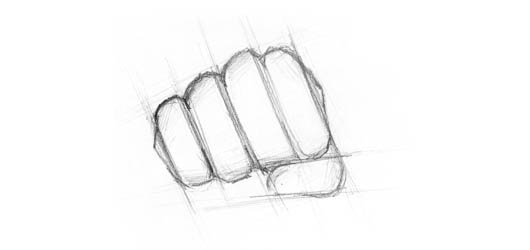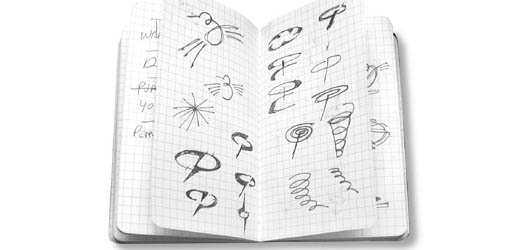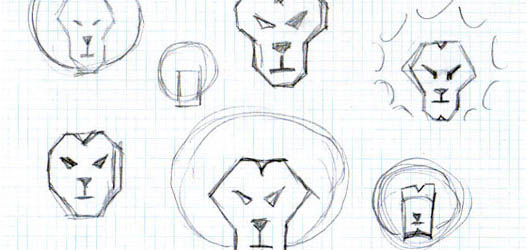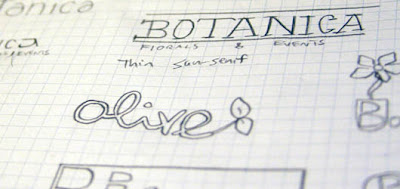
Featured Post Today
print this page
Latest Post
Showing posts with label Tutorial. Show all posts

Optimizing Images for Web | Fast loading Website

Optimizing Images for Web
Image is a supporting factor for any web elements, ranging from the illustration of articles, pictures supporting articles and pictures that are used in web design. There are various types of image files, such as jpg, png, and gif. They are all have different characteristics and qualities, so how to choose the type of image file that is suitable for use on the website? In this post I will share some tips on optimizing images for web, the objective is that you can select the appropriate file type and image optimization to be smaller in size but still have good quality.

Choosing the right type of image file


As I mentioned earlier, there are many different types of image files, such as jpg, png and gif. Here I describe when a file type should be used:

JPEG


Optimizing Images for Web

When the image you want to use - for example in an article or even a supporting element of web design has an assortment of colors or color high complexity e.g "photo shots", then you can use the JPEG file type.

JPEG file type usage in these conditions is very supportive because JPEG files can contain a variety of color information, and it can maintain image quality despite the small file size.

GIF

Optimizing Images for Web

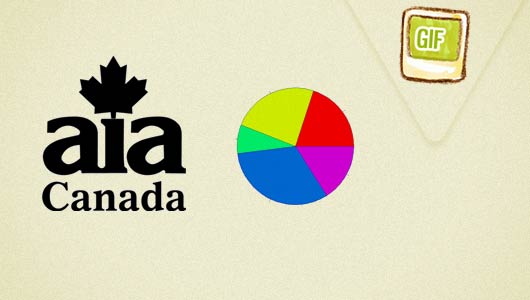
When an image has a little color, or some areas dominated by a single color, the gif image type is suitable for use. Examples of images that could have this type is the logo (simple logo), diagrams, and others.

PNG

Optimizing Images for Web

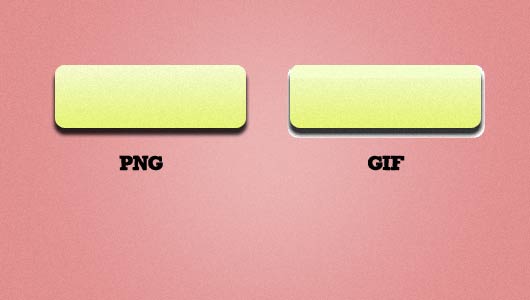
PNG file types can be used when the image has transparency. Although the GIF file type can have transparency but PNG file types better suited for this problem. gif type can only have 100% transparency value, while there are gradations of color that has transparency, GIF file types will have a low quality.

The example above is an example of transparency in the shadow area. the left is a PNG file and the right part is a GIF file (with transparency). PNG Transparency finer (transparency value can range from 0 to 100%) while the GIF has only 100% transparency value.

Optimized file formats for the web


By using imaging software such as Photoshop, every type of image file can still be optimized so that images have a low size and bandwidth friendly yet still has a high quality.

Optimizing Images For The Web With Photoshop


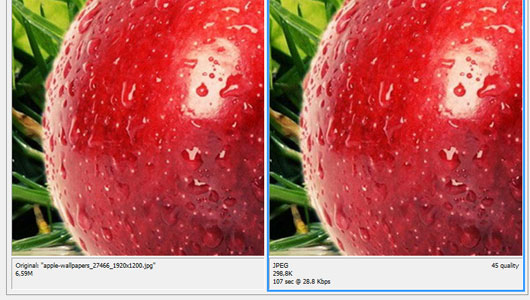
In photoshop, each time you want to save the image for web needs, be sure to save the image via: File -> Save For Web and Devices.
Optimizing Images for Web

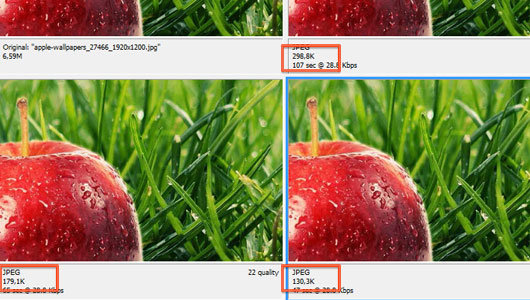
Set the preset, for example when you want to save the image with a JPEG file type, set the preset as follows:
Optimizing Images for Web

or you can also set the value of the "Quality", also note that the resulting size and picture quality through the preview pane.

To get transparency effect in PNG files, make sure you have a PNG-24 preset, otherwise the picture will have a white background.

Optimizing Images For The Web Using Third-party Sites


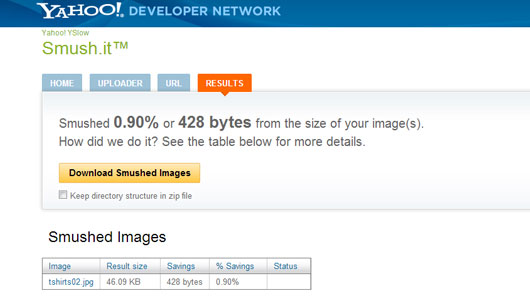
There are several websites that facilitate the needs of image optimization for the web, for example smush.it from yahoo. Sometimes the image that you thought was optimized through the previous steps it still can be optimized further by smush.it, so that the resulting files are smaller but still maintain quality.
Optimizing Images For The Web Using Third-party Sites

In the above example, I'm doing optimization for JPEG files, and the results can still be optimized by 0.90% so the image size is reduced by 428 bytes.

Optimizing Images For The Web Using HTML


Optimization through HTML image different from the previous optimization. In HTML you can help optimize the speed of loading images to determine the attribute 'width' and 'height' of the image. If you do not specify these two attributes, then when loading the image size will be calculated by the browser / CPU before being displayed, and it will take enough time when the image has a super size.

<img src="picture.jpg" alt="Optimizing Images for Web" width="200" height="300">

Do not resize the image size by width and height attributes


Never resize / resize images by specifying the width and height attributes, this method will only slow the loading process. Suppose you have a picture with the original size of 600 x 800px, but you only need the image to the size of 200 x 300px and you do the resizing with the width and height attributes.

The solution is, create different files for different sizes, do not change the size of the image using html attributes. Do not Ever!

Conclusion


Using the right type of image and write the image code appropriately (to include width and height attributes) can speed up loading time, beside the pictures that have been optimized will have a relatively small size but high quality. If the image has been optimized, you are not the only happy person, your visitors are also happy because faster sites improve user experience.

Create a Basic Page Layout in Adobe InDesign

Basic Page Layout InDesign
Adobe InDesign is one application of the Adobe family which may be rarely used, but some features in Adobe InDesign is quite powerful when used in conjunction with other graphics softwares. Adobe InDesign is generally used for: magazine lay-outing, newspapers lay-outing, books lay-outing, posters and all forms of print purposes especially those which are using more text in it, do that Adobe InDesign features layout management to take precedence over other graphical features in support those purpose.

In the world of graphic design, InDesign tutorials is still considered very rare. Perhaps because of the use of the software is still minor (compared to Illustrator, Photoshop, etc). In addition, the features are indeed very different from his brother Illustrator, Photoshop, etc. makes it seem complicated. 'Complicated' does not mean it can not be learned.

In this edition I'm going to share a little knowledge of InDesign, because of the many features that are interconnected for the purposes of layout .. I would probably repay the stage tutorial on InDesign. We'll start from the most basic and simple: "Create a Basic Page Layout in Adobe InDesign".

Basic Page Layout in Adobe InDesign: Tutorial


Step 1

Create a Basic Page Layout in Adobe InDesign

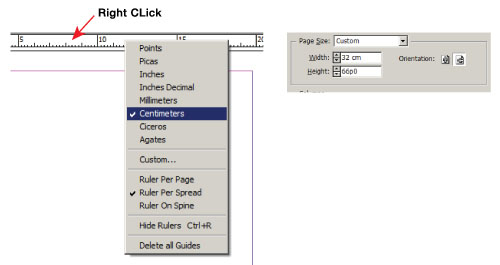
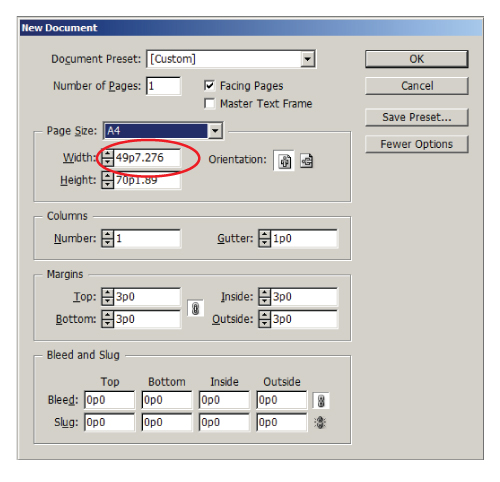
Open New Document (ctrl + N) on the File menu. You can adjust the paper size / work area in the "New Document" window . By default, InDesign displays the size in "picas (p0)", if you like to change into other measurement units you just simply type in the size of the full value with units of measure (eg: '32 cm '), after you enter a value In Design will automatically turn it back into the unit p0 (but dont worry, you can change all the settings of this size in Inch or centimeters later).

step 2

Create a Basic Page Layout in Adobe InDesign

To change all the settings of the unit of measure, simply right click on the ruler (on the top and right side of work area), then select the size setting that you need. so all the settings in InDesign size would change according to size unit you choose.

step 3

Create a Basic Page Layout in Adobe InDesign

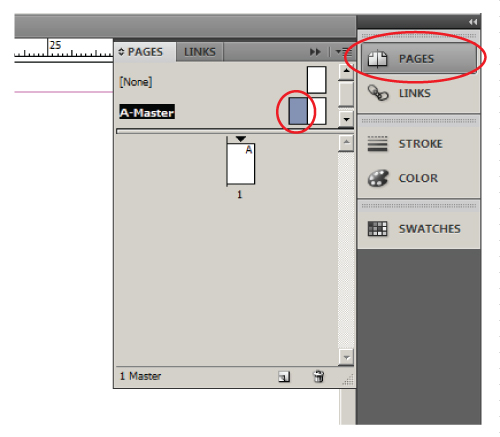
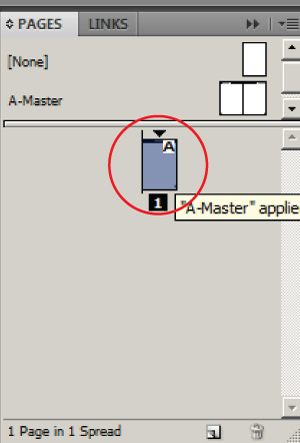
Before entering the content, you should first set the basic layout; setting the page number, and adjusting the placement of the Header / footer, with a click on the 'Pages' menu, and then double-click on the Master menu. 'Master Page' is the default page for all documents that you create, in other words: anything that you input in Master Page (either text, pictures and margin settings) will appear on every page.

Create a Basic Page Layout in Adobe InDesign

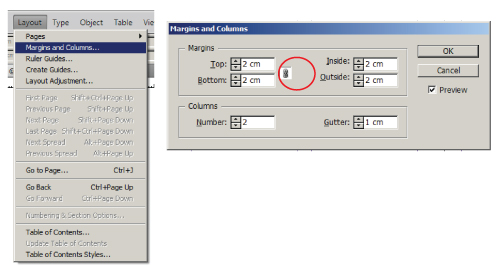
To set the margins (make sure the pages are still in the Master Page), you need to to a non-active (click) the icon link to a different input sizes.

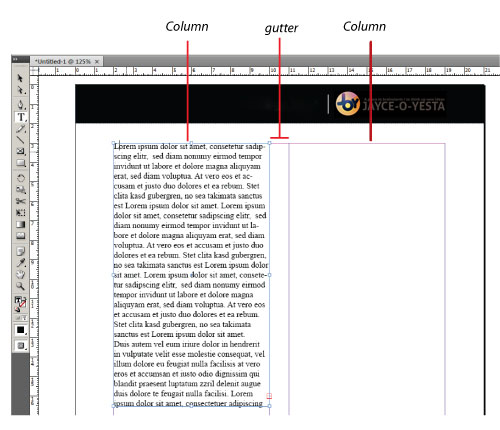
PS: for those of you who are accustomed to using MS Word, perhaps the mention of the margin setting is somewhat different though is the same principle. If in MS Word: 'Left and Right', then in InDesign would be: 'Inside and Outside'. On the menu 'Columns': 'Number' function in determining the number of lines of text that you want to make, and 'Guttter' is the distance between the line stretcher. Please just improvise in this section as needed. In this tutorial, Jayce-o-Yesta using columns '2 'with '1 cm gap'.

step 4

Create a Basic Page Layout in Adobe InDesign

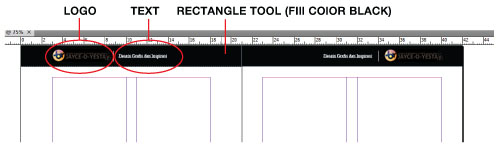
To create a Header / Footer, you just need to write the text by clicking on the 'Text' (T) and then drag to make its text area (in InDesign, you must first create a text area in a way: click + drag). If the Header / Footer form an image, you can either input by copying images from Adobe Illustrator, etc.. or Ctrl + D to take pictures of the files on the computer.

step 5

Create a Basic Page Layout in Adobe InDesign

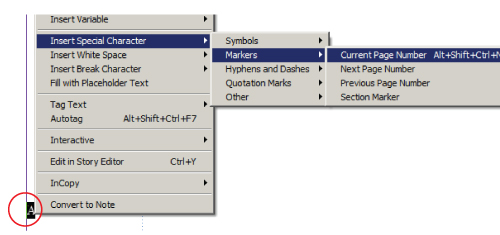
For inputting "Page Number", enter the text (T) by dragging it, type any letter, select the letter, and right click, then you will see a new menu, select 'Insert Special Character' / 'Markers' / 'Current Page Number'. So any letters that you input before changes to the letter "A". It is tailored to the title of Master Page (A-Master). Copy Page Number which has been set to the next page (in the Master Page there are two pages of the Master).

step 6

Create a Basic Page Layout in Adobe InDesign

If all the layout of the 'Master' is ready, the next is: double-click on sheet 1 (worksheet). On this sheet you will make the input text and images you need for the document.

step 7

Create a Basic Page Layout in Adobe InDesign

Click the Text (T) and then drag to make the necessary text area, type your text or content (in this example I customize the text area with a layout that was created earlier)

step 8

Create a Basic Page Layout in Adobe InDesign

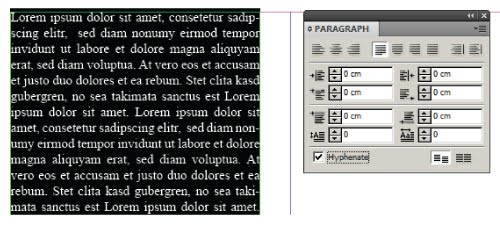
To set the paragraph, go to Window / Type & Tables / Paragraph (Ctrl + Alt + T) and set the paragraph that you want.

NB: enable "Hyphenate" to display a hyphen in paragraphs break, or turn off to remove it.

step 9

Create a Basic Page Layout in Adobe InDesign

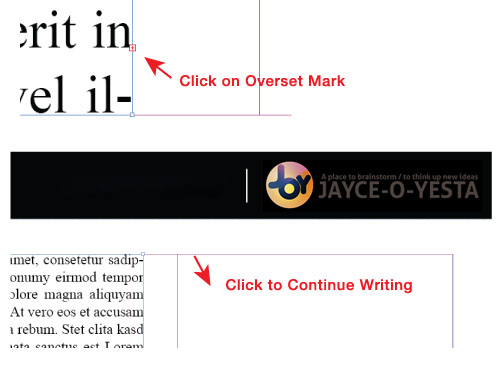
If your writing is truncated at the end of the column, then the sign of 'Overset Text' will appear. Click the sign to pop up a preview of small text on your cursor. Point your cursor to the next column and click on it, it automatically resume the truncated writings.

step 10

Create a Basic Page Layout in Adobe InDesign

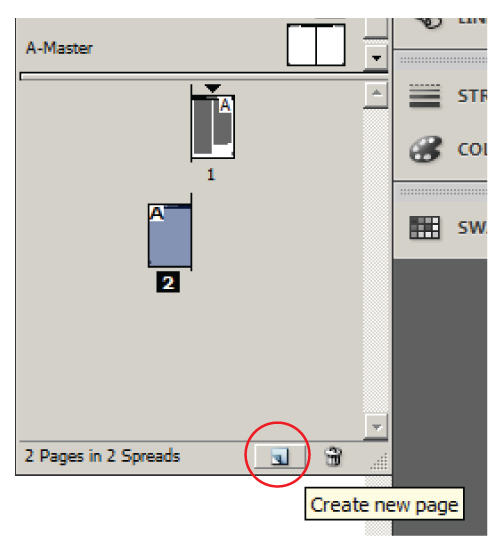
If you want to add the number of pages, click on the 'Create new page'. You can continue your writing on the advanced page. Now look, 'Page Number' which you have set on the 'Master Page' had now appeared in a sustainable manner. as well as Header / Footer that you created.

step 11

Create a Basic Page Layout in Adobe InDesign

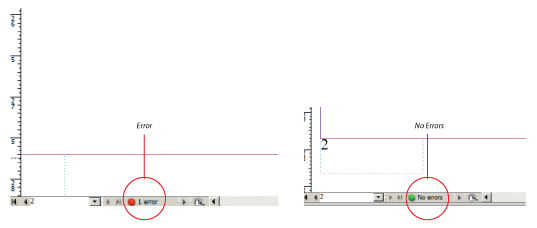
Before you save the file, note the 'preflight Panel' at the bottom left corner of the window bar of InDesign. This sign will be colored red if there are errors in the document that you create. Error can be caused because there is still a missing link files in the file that you input or overset text.


step 12

Create a Basic Page Layout in Adobe InDesign

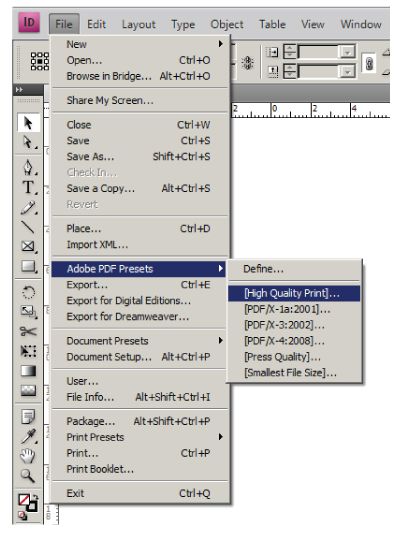
If you are finished, you can save your document in InDesign format (. Indd) to continue it later on, or you may save it in the PDF format if everything has been completed.

Saving in PDF Format:

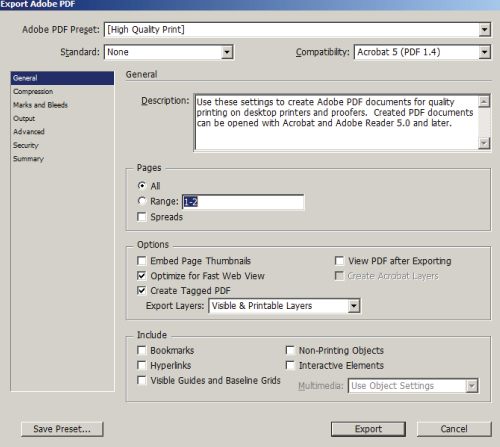
File/Adobe PDF presets/High Quality Print.

Create a Basic Page Layout in Adobe InDesign

Choose the destination file storage, and then click OK. This will bring up a 'Export Adobe PDF' window, click 'Export' and wait until it's done.

10 Best Logo Design Tutorials : From Sketch to Logo

10 Best Logo Design Tutorials : From Sketch to Logo
Sketch to Logo - Doing by concept! Yep! It's match with a design method that arguably classic but still used by Professional Logo Designer today. Sketch is an activity to make draft or concept in a paper media using a pencil, the goal is clear, is to pour creative ideas from the graphic designer before it is actually applied into computer graphics.

Below are some examples of inspiration (tutorial) to create a logo that actually starts from sketching logo on drawing paper, I became very inspired ... how about you?

10 + Best Logo Design Tutorials : From Sketch to Logo


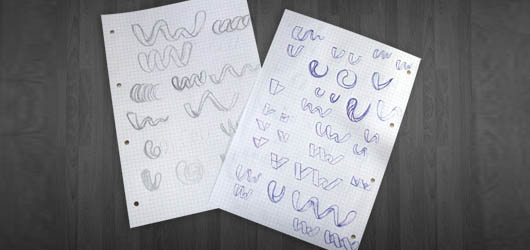
1. VIVID WAYS


10 + Best Logo Design Tutorials : From Sketch to Logo

10 + Best Logo Design Tutorials : From Sketch to Logo

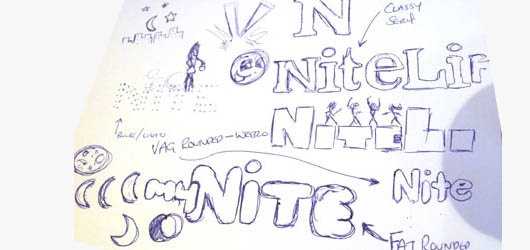
2. MYNITELIFE


10 + Best Logo Design Tutorials : From Sketch to Logo

10 + Best Logo Design Tutorials : From Sketch to Logo

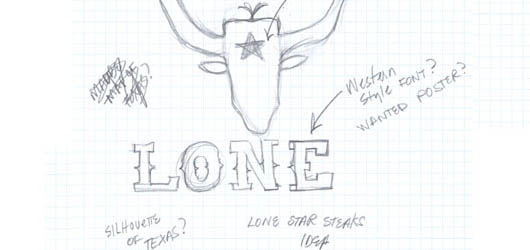
3. LONE STAR STEAK


10 + Best Logo Design Tutorials : From Sketch to Logo

10 + Best Logo Design Tutorials : From Sketch to Logo

4. LTD


10 + Best Logo Design Tutorials : From Sketch to Logo

10 + Best Logo Design Tutorials : From Sketch to Logo

5. METRO HELICOPTER


10 + Best Logo Design Tutorials : From Sketch to Logo

10 + Best Logo Design Tutorials : From Sketch to Logo

6. LIONSDEN


10 + Best Logo Design Tutorials : From Sketch to Logo

10 + Best Logo Design Tutorials : From Sketch to Logo


7. MISKEETO


10 + Best Logo Design Tutorials : From Sketch to Logo

10 + Best Logo Design Tutorials : From Sketch to Logo

8. IN4SYSTEM


10 + Best Logo Design Tutorials : From Sketch to Logo


10 + Best Logo Design Tutorials : From Sketch to Logo


9. NESTLIFE


10 + Best Logo Design Tutorials : From Sketch to Logo

10 + Best Logo Design Tutorials : From Sketch to Logo

10. BOTANICA


10 + Best Logo Design Tutorials : From Sketch to Logo

10 + Best Logo Design Tutorials : From Sketch to Logo

1 Pixel Optimization for Website Design

1 Pixel Optimization for Website Design
Although its presence is often overlooked visually, but for web designers and is pursuing a careful detail in his work, 1 pixel line can be very important. Sometimes, the use of 1 pixel precise line can be measured in distinguishing between good designers and the best designers.

I conclude that the most recent modern website design uses 1 pixel tricks. Its usefulness is very diverse, in addition to providing visual details that are not too excessive, it can also increase the comfort factor of its users (visitors) too. Here are some examples of the use of 1 pixel on website design.

To emphasize the borderline


Yup, that's right! 1 pixel line to emphasize the separation between content with one another, so that users get a more comfortable space for reading. This is usually used to separate groups of text / paragraph (example: Twitter Stream, News Feeds, etc.).

1 Pixel Optimization for Website Design

The trick to making the limiting effects as in the picture above is to use two lines (each 1 pixel). Then by creating a single line color brighter than other colors, then put the two lines to coincide.

1 Pixel Optimization for Website Design

To emphasize the size of the field


1 pixel thin line can also be used to polish the outer line of a field, so the end result will look more sharp and distinct. The resulting effect is not too significant, but it would be more comfortable in the eyes by using a 1 pixel line.

1 Pixel Optimization for Website Design

1 Pixel Optimization for Website Design

To provide visual detail


A button can be quite interesting if we use the 1 pixel lines with the right color. And of course, the button that works is one that is more 'inviting' the user to click.

1 Pixel Optimization for Website Design

Sample and inspiration


1 Pixel Optimization for Website Design

1 Pixel Optimization for Website Design

1 Pixel Optimization for Website Design

1 Pixel Optimization for Website Design

1 Pixel Optimization for Website Design

Conclusion


1 pixel line is very small indeed, but it plays an important role on the outcome of a website design. With proper use and tricks we can create the details that could provide a significant impact.

So, try to look back when you've finished designing a website, so that the result into a website design that 'mature'.

Do you often use this trick too? Or are there other tricks of detail? Please share in the comment:)
 
Support : Creating Website | Johny Template | Mas Template
Copyright © 2011. Tutorials Blogger - All Rights Reserved
Template Created by Creating Website Published by Mas Template
Proudly powered by Blogger